
OHL ALUMNI APP - DOWNLOAD INSTRUCTIONS


IMPORTANT: For any support related to the app, please contact support@1rink.com
GETTING STARTED with the OHL ALUMNI 1RINK APP
STEP 1. Download the app from App Store


Go to the Apple store or Google Play store depending on your device and search for OHL Alumni published by RinkNet Software.
Here is the direct link for Apple devices: OHL Alumni App - App Store
Here is the direct link for Google devices: OHL Alumni - Apps on Google Play
Download the app and install it on your phone. If you do not have the app, you can use the generic web application from your browser at https://app.1rink.com
STEP 2. CREATE A 1Rink ACCOUNT
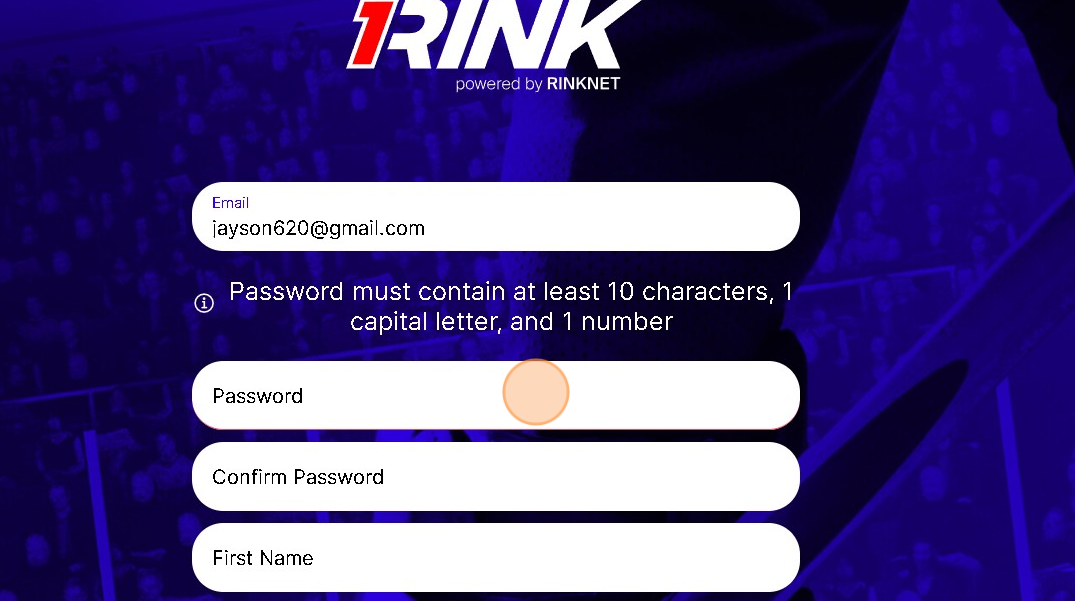
If you already registered a 1Rink account previously on the standard 1Rink app, you can skip this step.
Once installed, follow the instructions below to create a 1Rink account to login to the app or from this link: https://app.1rink.com/#/register
STEP 3. VERIFICATION AND LOGIN
If you already registered a 1Rink account previously on the standard 1Rink app, you can skip this step. Once you create an account, check your e-mail to click the link to verify your account.
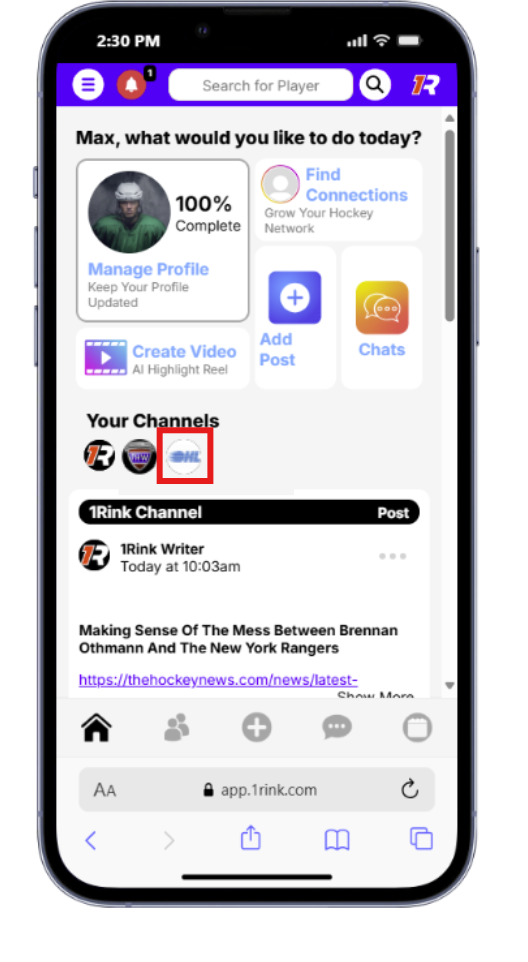
Once your account is verified, open the OHL Alumni app on your phone and login. Once logged in, you should see the dashboard screen.
The dashboard will contain a mix of content from various channels in the 1Rink app, including OHL news. However, click on this icon OHL Alumni to view the OHL Alumni Channel where you will find and post relevant news for OHL Alumni.